 NetworkWatch
Home network monitoring
Understand your home network and know what to do next
Bring your devices, connection health and network observations into one readable dashboard. NetworkWatch explains what a finding means, helps you prioritize it and shows what to check next.
Runs on a Windows PC. Monitoring continues while the PC is awake and NetworkWatch is running.
Everyday benefits
From “something looks wrong” to an informed next step.
Know what is connected
See the devices your PC can discover, with names, rooms and types you recognize instead of a page of addresses.
Understand connection changes
Compare latency, probe loss and DNS readings with recent history to spot changes worth a closer look.
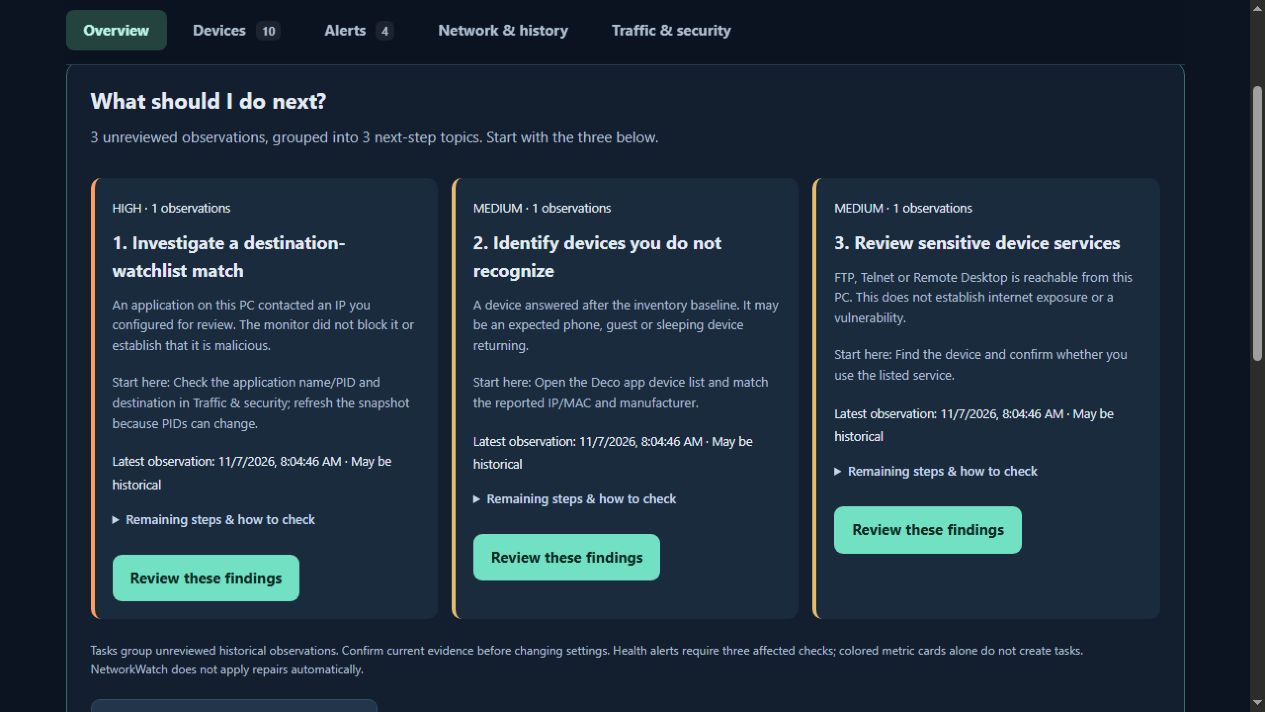
Decide what to investigate next
Findings are grouped into a short action list, with why each one matters and how to check the result.
Features
A monitoring and investigation assistant.
Clear explanations sit next to every reading, and the limits of each check are stated right where you see it.
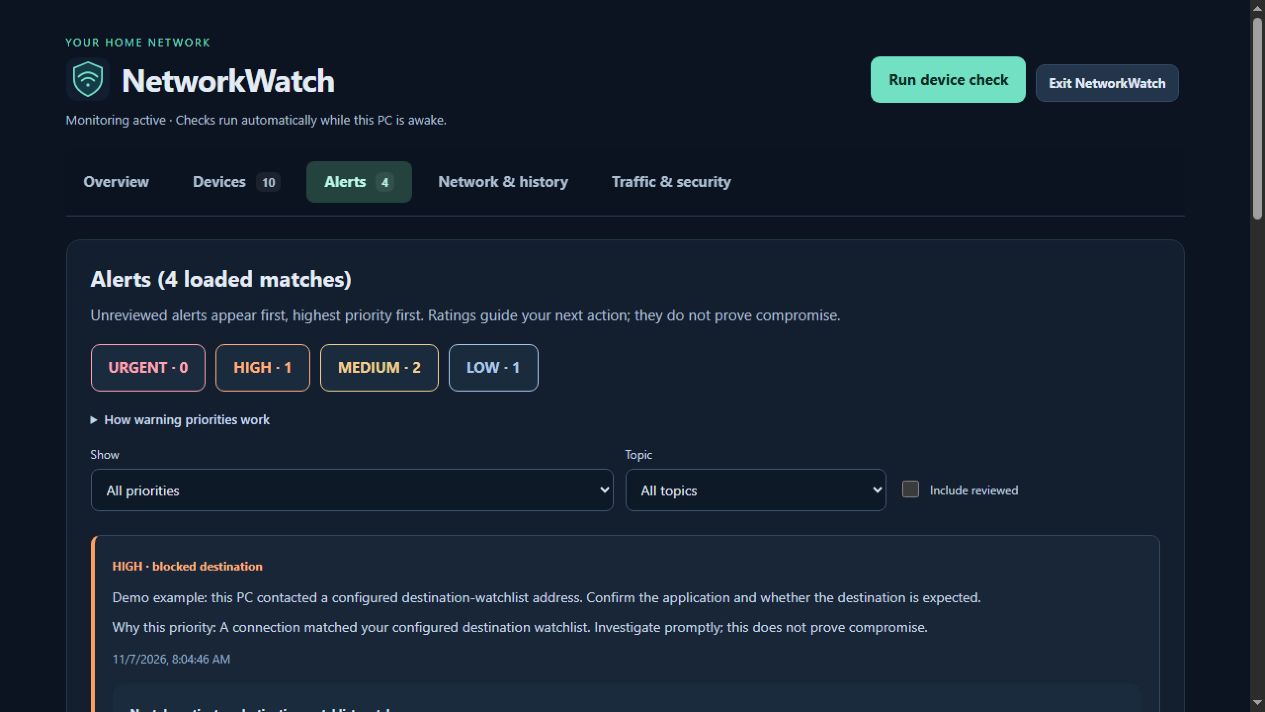
Warnings in priority order
Review Low, Medium, High and Urgent levels with a reason for each rating. Keep routine maintenance separate from findings that deserve closer attention.
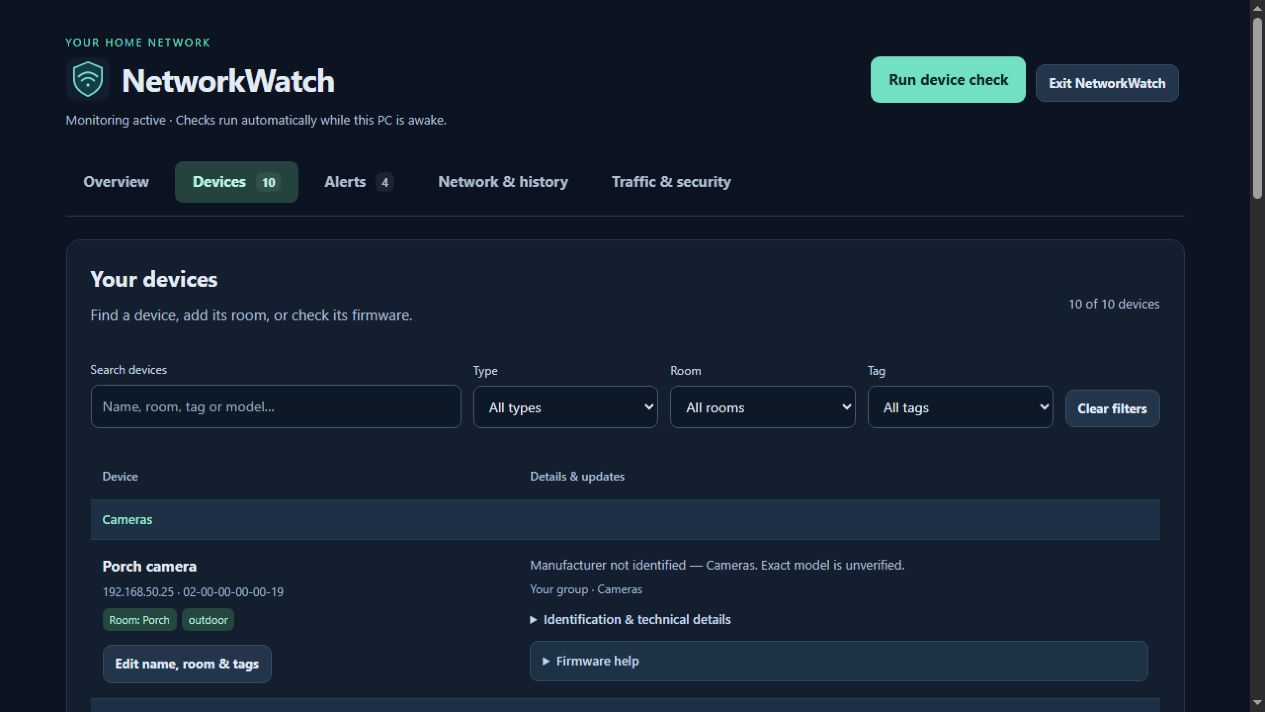
Devices that make sense
Find devices your PC can discover and organize them with meaningful names, rooms, types and tags. Search for a printer, TV or light switch without remembering its address.
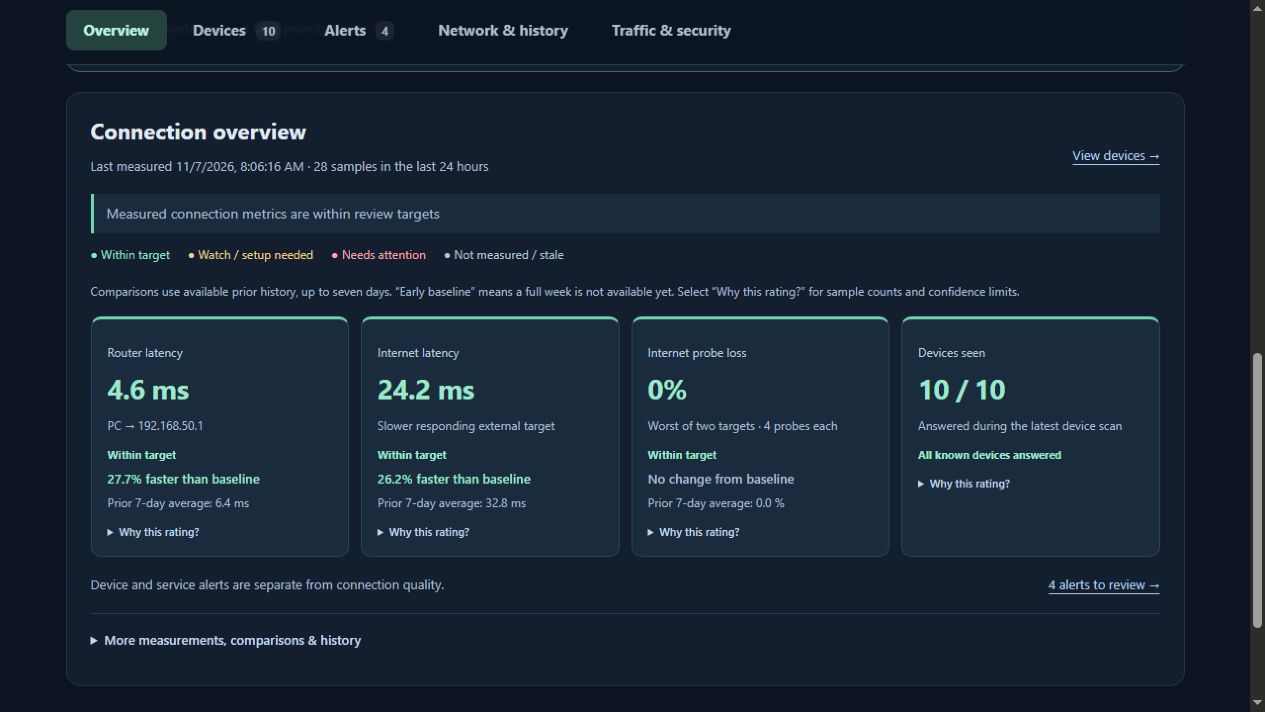
Connection health with context
Check router and internet latency, probe loss and DNS response. Compare available measurements with prior history of up to seven days to spot changes worth investigating.
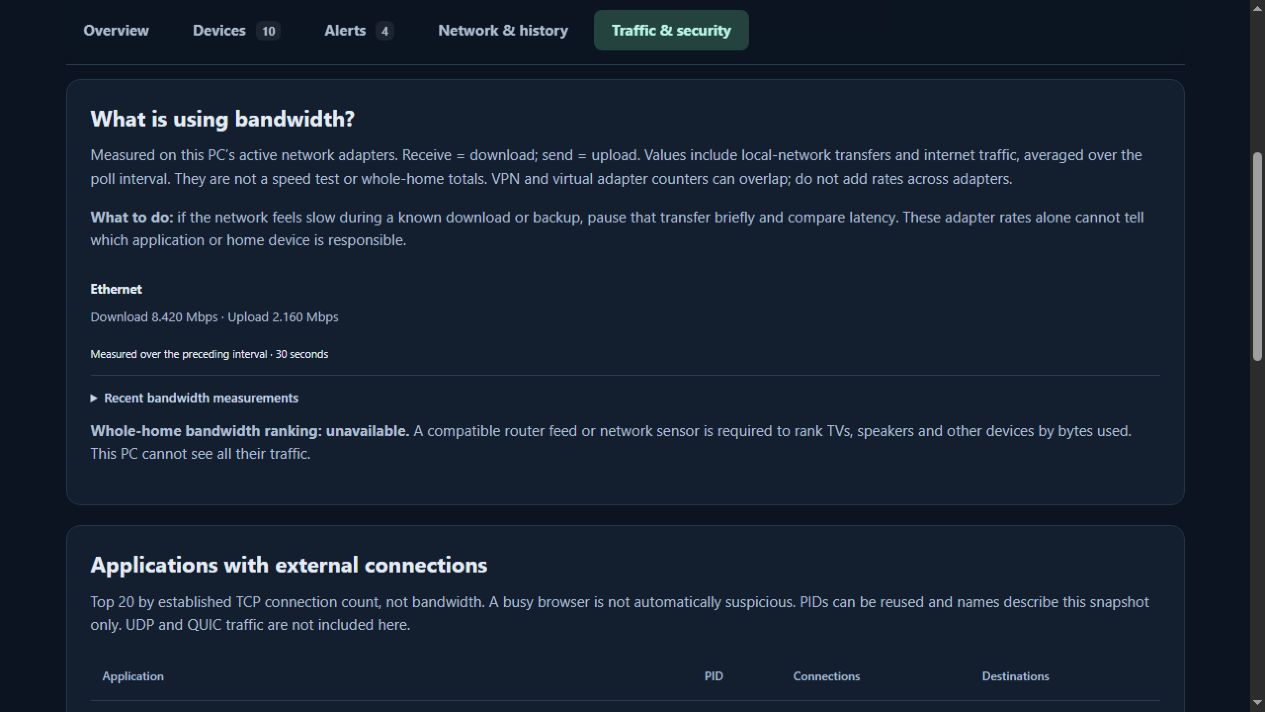
Open services and PC traffic
Review selected reachable TCP services on discovered devices. See this PC’s adapter upload and download rates, application connection counts and configured destination-watchlist matches.
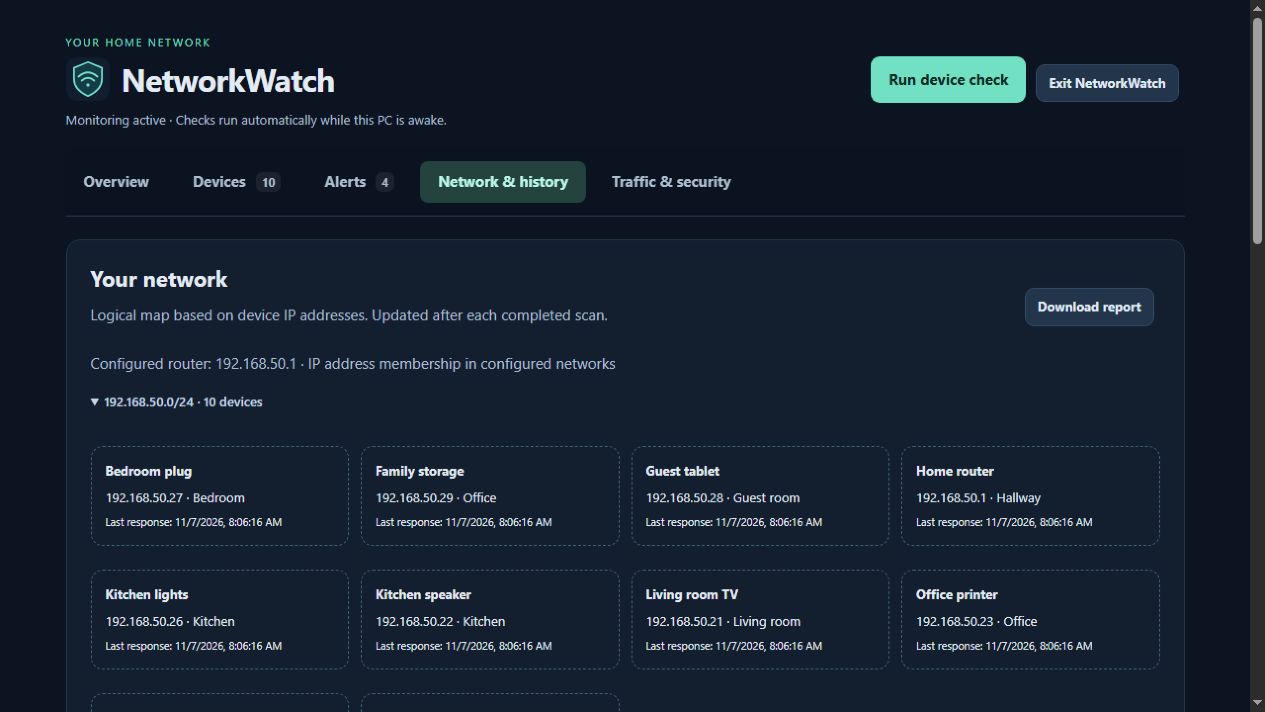
Changes and useful history
See a logical device view by subnet and track observed changes in addresses, ports, names, firmware readings and scan responses. Download a JSON report for your own review.
Clear next steps
Know where to start. NetworkWatch groups related observations into a short action list, explains why they matter and tells you how to check the result.
Supported firmware guidance
Keep exact models and recorded firmware details together, with official update guidance and supported model-specific links.
Local dashboard, optional phone access
Keep your inventory and history on the monitoring PC. With separate setup, open the dashboard from an iPhone on reachable home Wi-Fi.
How it works
Up and running in four steps.
Install on your Windows PC
Use the Windows installer. Everything it needs is included.
Let the first check finish
NetworkWatch discovers the devices your PC can reach and starts building history.
Name devices and rooms
Turn addresses into the porch camera, office printer and living room TV.
Review and follow the steps
Work through prioritized findings and check fresh results after any change you make.
Scope and FAQ
Good questions to ask.
Does NetworkWatch fix problems automatically?
No. It collects observations, prioritizes findings and provides investigation steps. Changes to services, router settings, device access and firmware remain manual.
Can it tell me which home device uses the most bandwidth?
Not in the current version. Adapter rates describe the monitoring PC. Whole-home and per-application byte rankings need additional telemetry; application tables currently rank TCP connection counts.
Does an open port mean my device is unsafe?
No. A sampled port means a service was reachable from the monitoring PC at an observation time. It does not prove a vulnerability or exposure to the internet.
Where is my information stored?
Inventory, tags, history and alerts are stored on the monitoring PC. Some health probes and firmware lookups contact external services, so some network requests do leave the PC.
Does recognition use a cloud AI service?
The current recognition engine uses local device metadata, manufacturer information and rules, plus your corrections. It does not send the inventory to a generative AI service.
Can I use it on my iPhone?
Optional access uses the iPhone browser over reachable home Wi-Fi. It requires separate password, HTTPS certificate and PC firewall setup. The monitoring PC must stay on; this is not a native iOS or cellular-access app.
Will checks continue when I close the browser?
Yes, if the monitor is still running and the PC is awake. Exit NetworkWatch stops monitoring. Signing in, sleeping, restarting and power state affect when checks run.
Does it support Synology or Linux?
Not currently. NetworkWatch is available as a Windows x64 app.
Download
Start with a clearer view of your network.
NetworkWatch is a Windows x64 app. The public download is being prepared. Leave your email and we will let you know as soon as it is available.
Runs on a Windows PC. Monitoring continues while the PC is awake and NetworkWatch is running.